





 Preview · Mac, Windows, iPhone and iPad
ZioLabel
Crop a shipping label from a PDF and save it at label size
Select the label area on a Letter or A4 PDF page, choose the paper size, and export a new PDF for your label paper. Your original PDF is never changed.
Coming soon — not yet available in any store
截圖
Preview builds with synthetic sample labels. Click an image to open it full size. Screens may change before release.
What it does
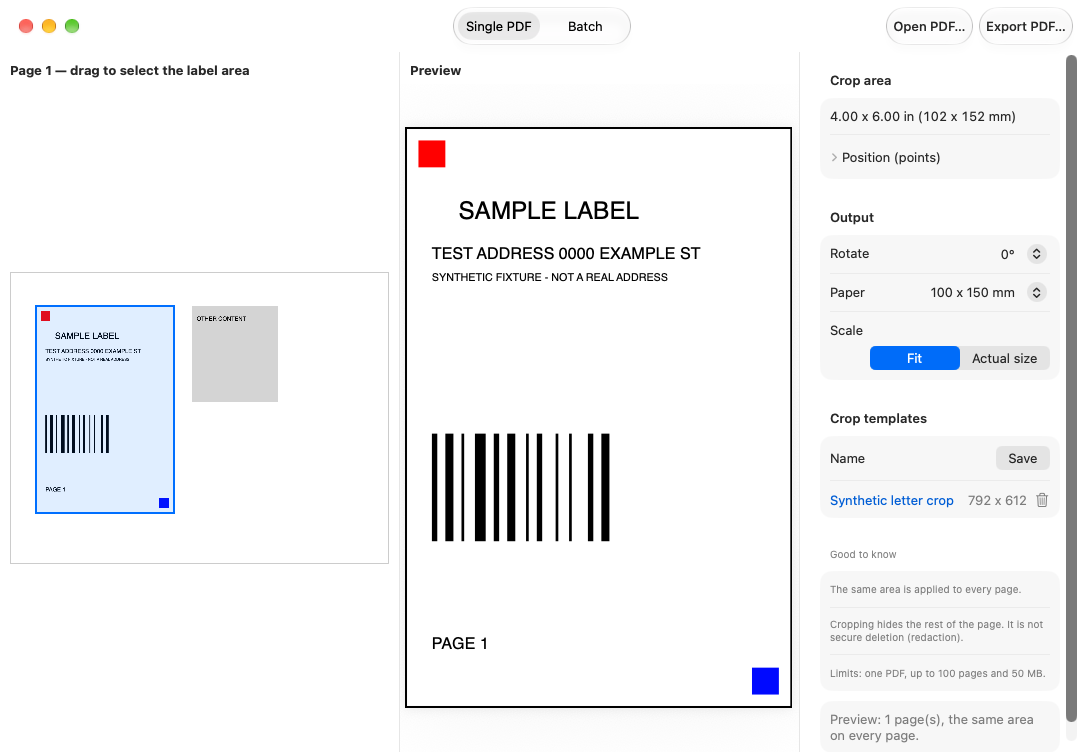
- Open one PDF and select the label area by dragging.
- Choose 0, 90, 180 or 270 degree rotation.
- Choose paper: 4x6 in, 100x150 mm, or a custom size from 20 to 500 mm.
- Choose Fit or Actual size, check the preview, then export a new PDF.
- Vector text and lines remain vector in the output PDF.
- Save a crop template and reuse it for PDFs with the same page size. The same area is applied to every page. Pages with a different size are rejected, not guessed.
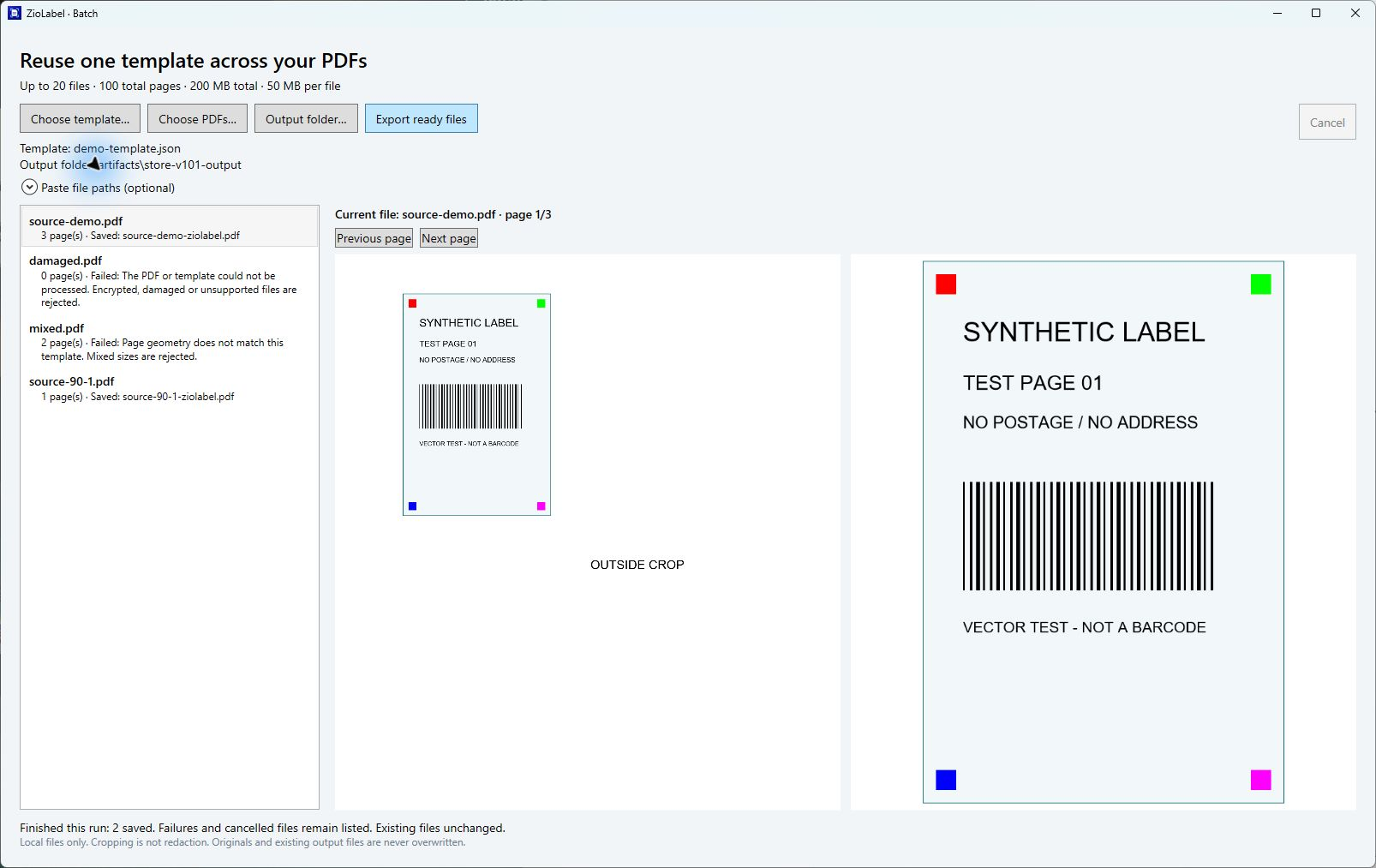
Batch
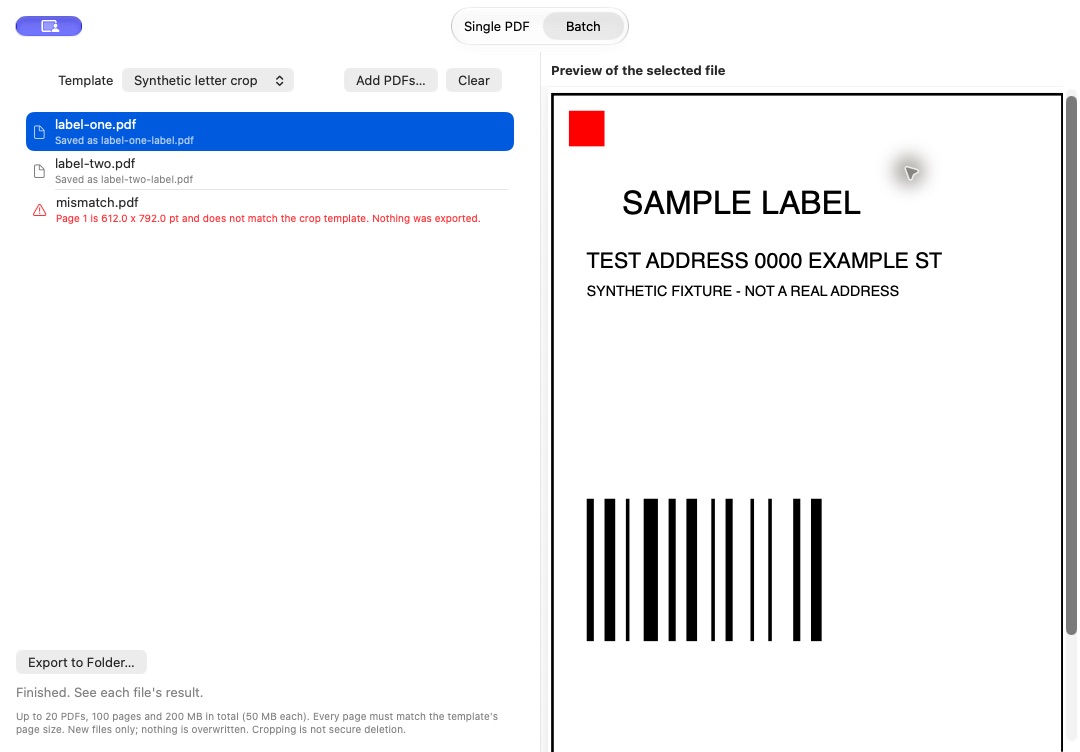
Mac preview
- Apply a saved template to up to 20 PDFs, 100 pages and 200 MB in total (50 MB per file).
- Each file shows Ready, or the reason it cannot be used.
- Files are processed one after another and can be cancelled.
- Results are new files in a folder you pick. Nothing is overwritten.
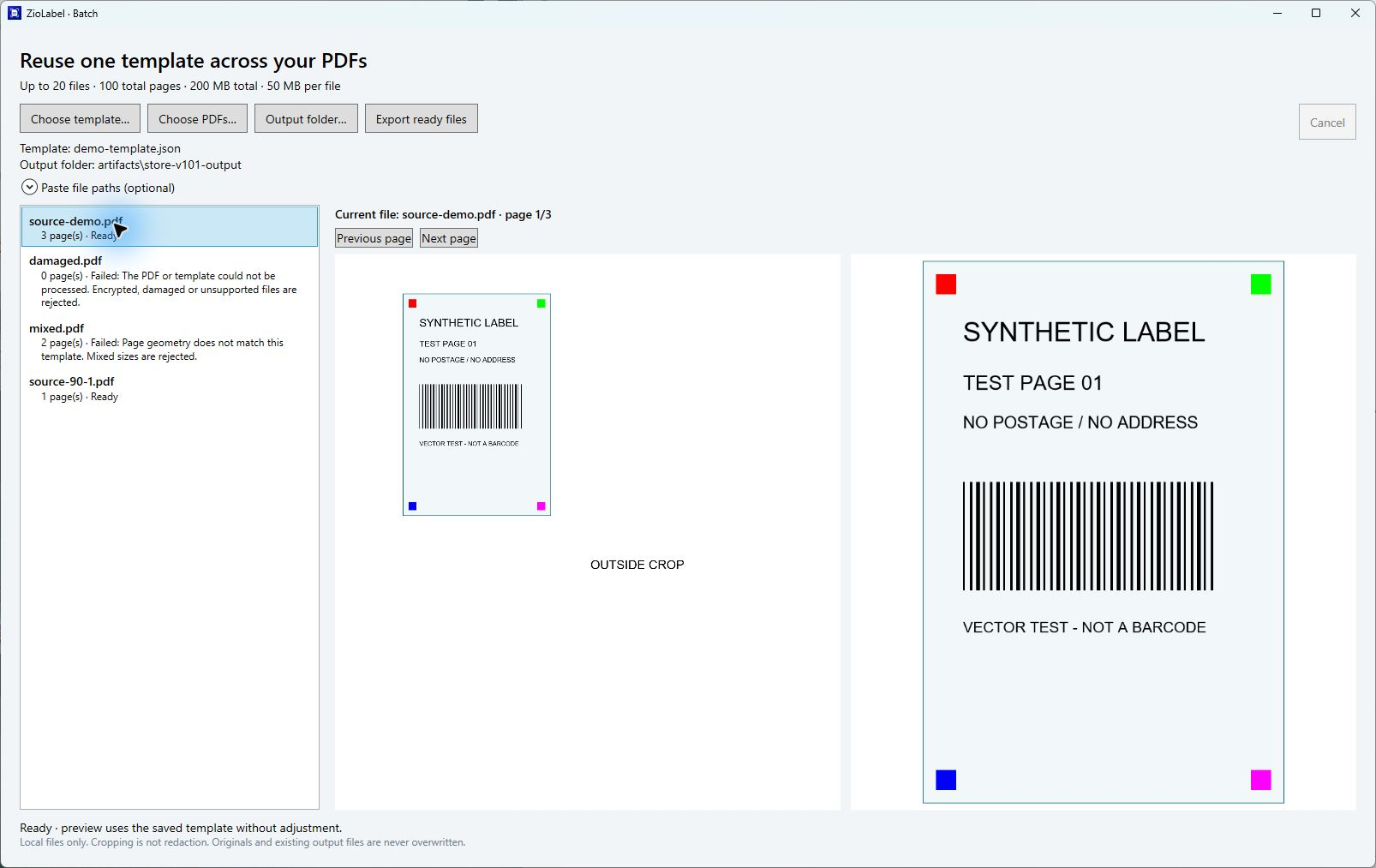
Windows preview
- Apply a saved template to up to 20 PDFs, 100 pages and 200 MB in total (50 MB per file).
- Choose a template, choose PDFs and an output folder, then export the ready files.
- Each file is listed as Ready, Saved, or Failed with a reason, for example a different page size or an unsupported file.
- Results are saved as new files. Originals and existing output files are not overwritten.
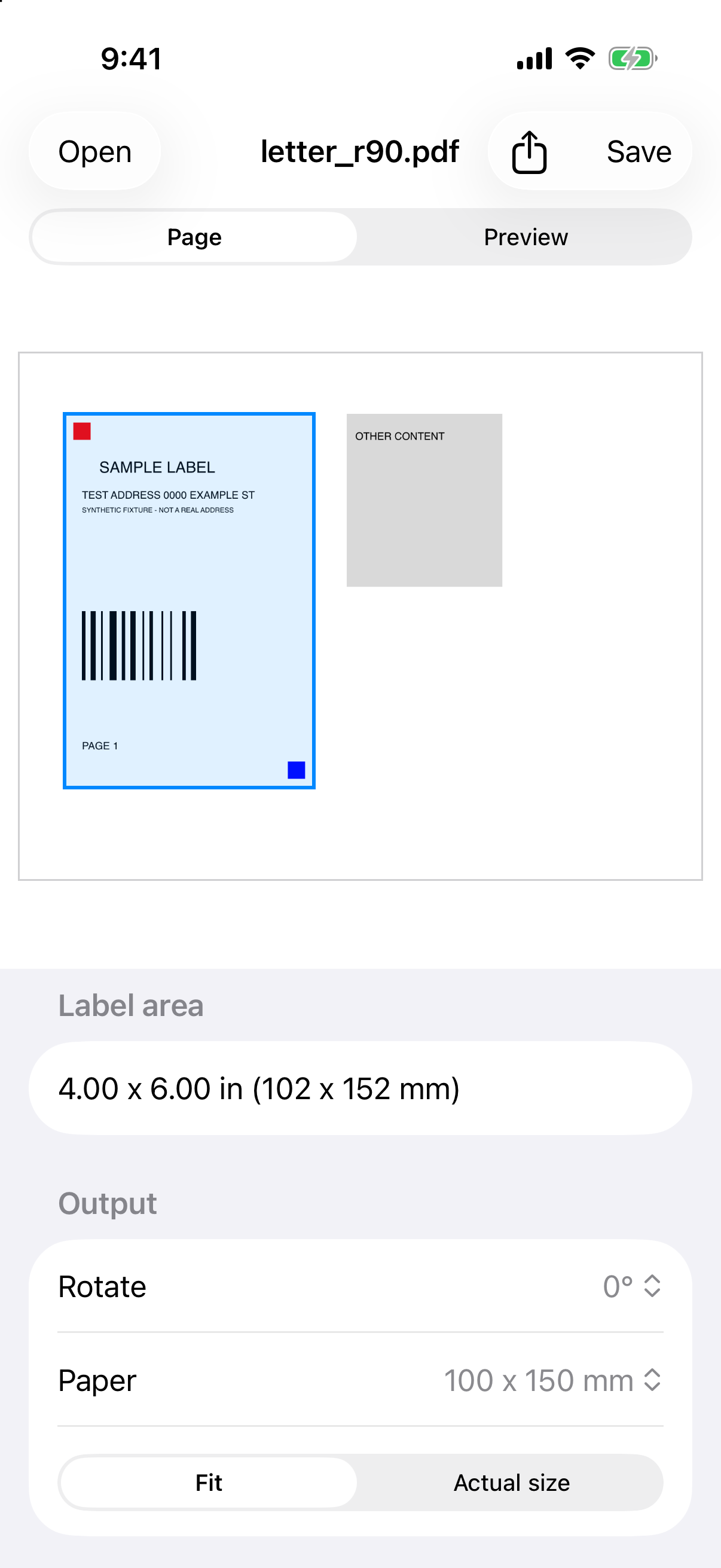
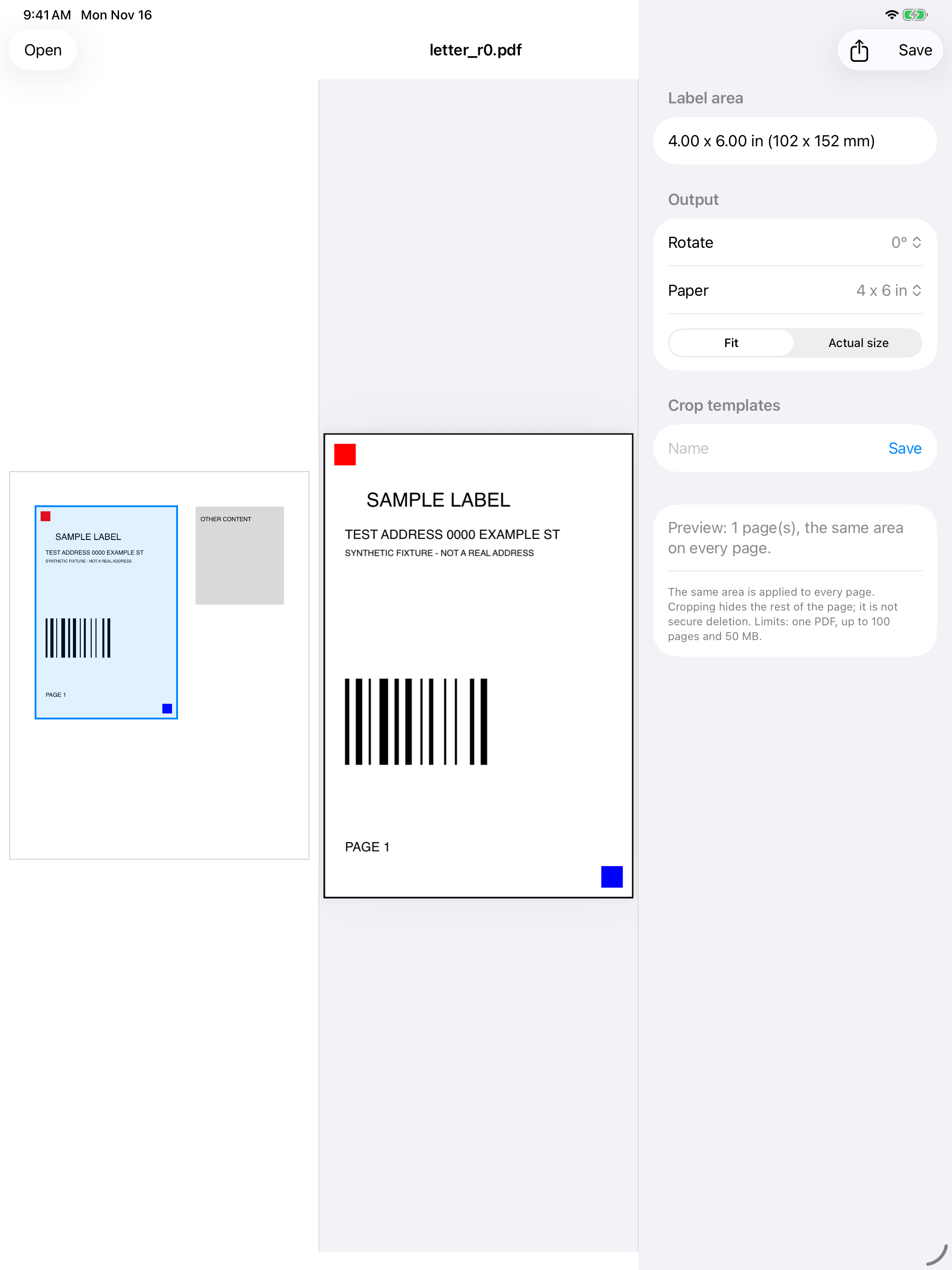
iPhone and iPad
- Open one PDF from the Files app (system file picker), or use Open in ZioLabel from Files.
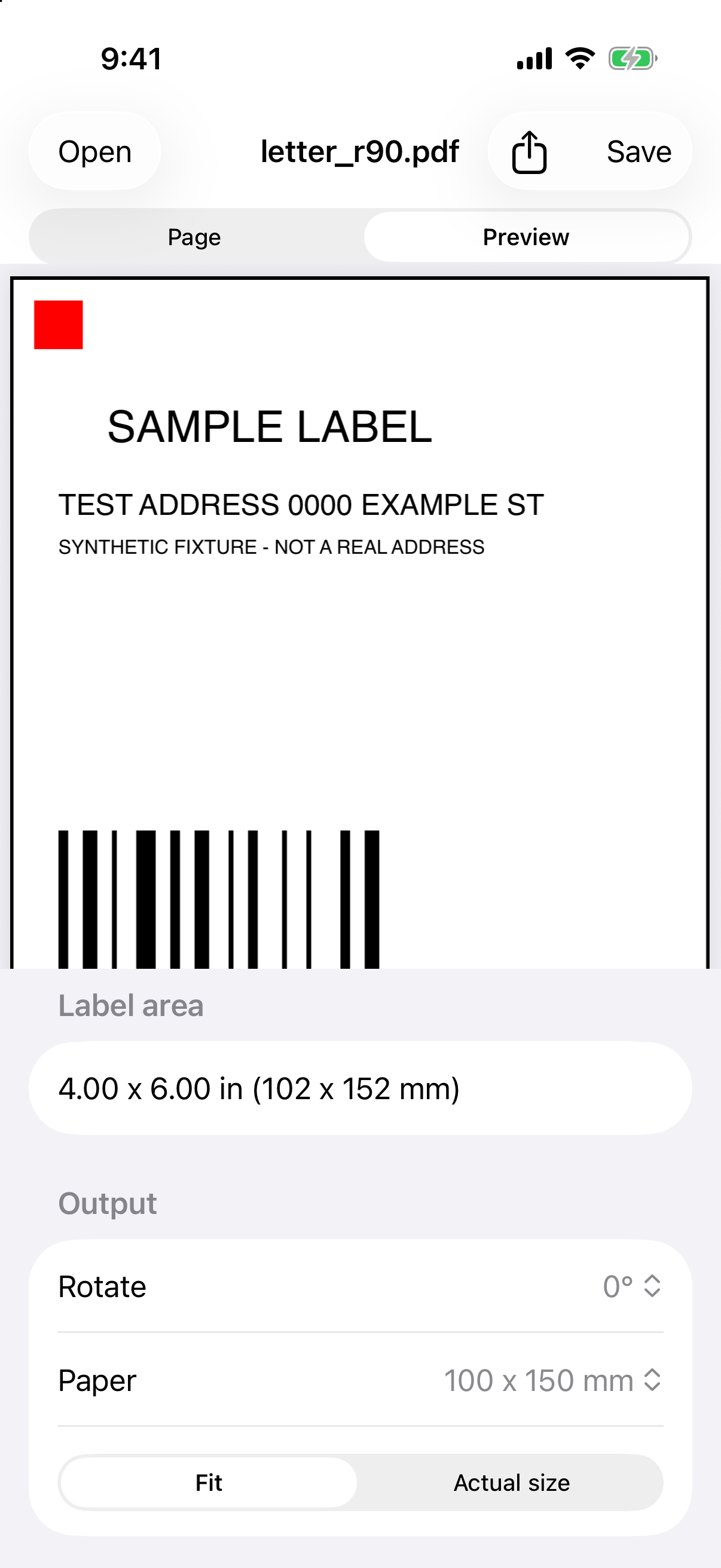
- Select the label area by dragging, choose 0, 90, 180 or 270 degree rotation, paper (4x6 in, 100x150 mm or a custom size from 20 to 500 mm) and Fit or Actual size, then check the preview.
- Save the new PDF with Save to Files (system save dialog) or Share (system share sheet, for example Copy, Print or Save to Files).
- Save crop templates and reuse them for PDFs with the same page size. The same area is applied to every page.
- One PDF at a time, up to 100 pages and 50 MB. Encrypted or damaged PDFs, forms, annotations, optional-content layers, unusual page units and pages that differ from the template are rejected with a message.
- The original PDF is never changed. Requires iOS or iPadOS 17 or later.
- Batch is not available on iPhone or iPad. The screenshots were taken in the iOS Simulator.
Limits in this version
- Single mode: one file, up to 100 pages and 50 MB.
- Encrypted or damaged PDFs, forms, annotations, optional-content layers and unusual page units are rejected.
- Not included: automatic label detection, OCR, shipping purchase, carrier or marketplace connections, accounts, or cloud.
Cropping is not redaction. Cropping only hides the rest of the page from view. It is not secure redaction, so do not rely on it to remove sensitive information.
Availability
A macOS preview build and a Windows preview build exist, and an iPhone and iPad version has been run in the iOS Simulator. None of them is in a store yet, and there is no release date.